You might have seen or heard about the new Alarm Help feature included in DeltaV Version 11. Some have referred to it as an alarm wiki – being able to capture the knowledge and experience of your plant’s operation staff to help resolve upsets more quickly.
Primary access for the Alarm Help is from a module’s faceplate. Well, really it’s from the Alarm ActiveX object embedded in the faceplate. This is important, because this ActiveX object is also used to create the overall Alarm Summary display, so access to the Alarm Help is also available from the summary, as well from the Operate toolbar.
And by access, what’s really happening is you’re launching a new application, alarmhelp.exe. Why is this important? Because you can launch alarmhelp.exe outside DeltaV Operate. Let that cook in your brain for a minute.
When you get an alarm on a module that’s not had Alarm Help information previously entered, the faceplate looks like this (I added the red circle):

That sheet of paper and pencil icon is your clue that this alarm hasn’t been wiki-fied. Click on it, and the alarmhelp.exe application launches (I’ve just include the top portion of the Alarm Help dialog):

And even nothing has been setup for this particular alarm yet, you still get info about how long this alarm has been active (3 days, 20 hours, and some change). Now click on the paper and pencil here (with the proper access privileges, of course) and you can begin filling in your alarm help information:

Both the Time to Respond and Consequence of Inaction come from two new named sets:
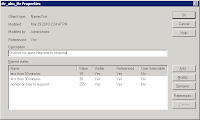
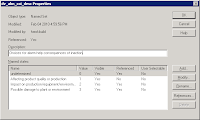
You can add to these named sets, but take a close look at the Value column of dv_alm_ttr. Who came up with 10 and 30 for the values? They correspond to the times to respond as suggested by the named set Name. So if you have an alarm that needs to be dealt with in 12 minutes, you’d add a new entry with a value of 12 – neat, huh? And for those of you feverishly doing the math, the maximum response time you can configure is 254 minutes or a little over 4 hours.
Once you start to fill in information on the alarm, the grayed out Save button un-grays and can be selected. Pressing Save commits your changes to the module (a quick check of control studio will show Alarm Help is set to True with the text you’ve entered, both online and offline!). But to get DeltaV Operate to know about your changes, you still need to download and you even get the familiar blue triangle next to the Download button:

You get a confirmation box, letting you know you’re only downloading Alarm help information for the current alarm you’re dealing with:

And you get a somewhat familiar download progress dialog box:

Now the paper and pencil on the faceplate have been replaced with a question mark:

Besides the obvious advantages of the alarm help information, the dynamic timers at the top of pop up give a quick indication of just how long the alarm event has been active. The Time to respond field even changes color from green to red once it counts down to zero:
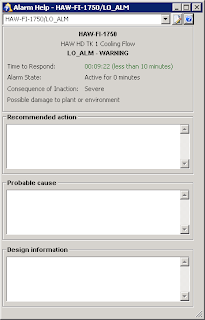
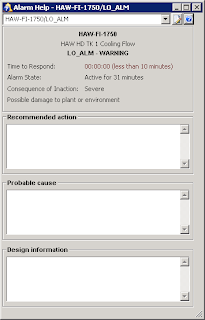
To faciliate/moderate data entry into the various Alarm Help fields, 6 new security functions have been added, providing a lot of granularity within DeltaV User Manager. Now how about an Alarm Summary display indicating all critical alarms and their associated durations for Limited Condition of Operation (LCO) applications? I’ve got to go and talk to Drew…


